Thursday, May 27, 2010
Stsadm to Windows PowerShell mapping (SharePoint Server 2010)
Microsoft has published a very useful new article on Technet that lists STSADM operations and their equivalent PowerShell cmdlets. Check this link.


Thursday, May 13, 2010
Disable event firing in sharepoint when updating list item
Below piece of code can be used to update SharePoint list item inside any event receiver. I have written it for Updated event receiver.
public override void ItemUpdated(SPItemEventProperties properties)
{
//some handling here
ListItem item = properties.ListItem;
item["someproperty"] = "some value";
this.DisableEventFiring();
//save changes added
Item.Update();
this.EnableEventFiring();
}
Monday, April 5, 2010
Microsoft Tech.Ed 2010, India: In Bangalore from April 12-14
Yes, Its time to pack our bags for TechEd 2010. I am excited & will be attending the largest technology conference globally this year. This time, it is held up in Bangalore from 12th April to 14th April.
I have got the registration in development track & I am keen interested in watching out SharePoint track there.
I am looking forward to TechEd 2010. Hurray :-)

*Picture taken from TechEd 2010 India Site for Blogging PurposeI have got the registration in development track & I am keen interested in watching out SharePoint track there.
I am looking forward to TechEd 2010. Hurray :-)

For more information visit http://www.microsoftteched.in
Monday, March 29, 2010
Upgrade Checker in SharePoint SP2 – prepare your way to SharePoint Server 2010
The upgrade checker in MOSS/WSS SP2 stsadm operation is very useful. It checks server farm for system requirements, database health and a list of rules. The rules can also be extended.
To use upgrade checker, first open a command line prompt, and run
"X:\Program Files\Common Files\Microsoft Shared\Web Server Extensions\12\BIN\STSADM.EXE" -o preupgradecheck
(X is the drive letter where you install SharePoint)
Make sure you are in administrator mode. Otherwise it would be denied.
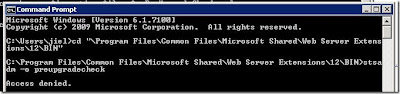
You can see there’re a list of rules checked by the operation.
SearchContentSourcesInfo
SearchInfo
ServerInfo
FarmInfo
UpgradeTypes
SiteDefinitionInfo
LanguagePackInfo
FeatureInfo
AamUrls
LargeList
CustomListViewInfo
CustomFieldTypeInfo
CustomWorkflowActionsFileInfo
ModifiedWebConfigWorkflowAuthorizedTypesInfo
ModifiedWorkflowActionsFileInfo
DisabledWorkFlowsInfo
OSPrerequisite
WindowsInternalDatabaseMigration
WindowsInternalDatabaseSite
MissingWebConfig
ReadOnlyDatabase
InvalidDatabaseSchema
ContentOrphan
SiteOrphan
PendingUpgrade
InvalidServiceAccount
InvalidHostName
A successful run could show the following:
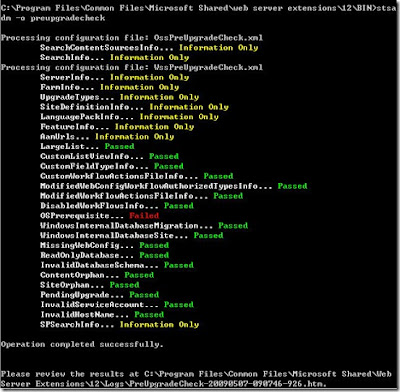
Hey, we got a “OSPrerequisite… Failed” here. So let’s take a look at the report.
The report will give you the following information:
Search content sources and start addresses
Office Server Search topology information
Servers in the current farm
The components from this farm
Supported upgrade types
Site Definition Information
Language pack information
Feature Information
Alternate Access Mapping Url(s) within the current environment that should be considered when upgrading.
Lists and Libraries
Customized field types that will not be upgraded
Windows SharePoint Services Search topology information
And also the failed items it checked.
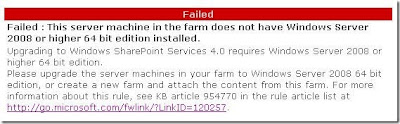
In my case, because this machine is still on Windows Server 2003 32bit, so it does not meet the requirement of SharePoint Server 2010, which needs to be install on Windows Server 2008 x64.
Failed : This server machine in the farm does not have Windows Server 2008 or higher 64 bit edition installed.
Upgrading to Windows SharePoint Services 4.0 requires Windows Server 2008 or higher 64 bit edition.
Please upgrade the server machines in your farm to Windows Server 2008 64 bit edition, or create a new farm and attach the content from this farm. For more information about this rule, see KB article 954770 in the rule article list at http://go.microsoft.com/fwlink/?LinkID=120257.
To use upgrade checker, first open a command line prompt, and run
"X:\Program Files\Common Files\Microsoft Shared\Web Server Extensions\12\BIN\STSADM.EXE" -o preupgradecheck
(X is the drive letter where you install SharePoint)
Make sure you are in administrator mode. Otherwise it would be denied.

You can see there’re a list of rules checked by the operation.
SearchContentSourcesInfo
SearchInfo
ServerInfo
FarmInfo
UpgradeTypes
SiteDefinitionInfo
LanguagePackInfo
FeatureInfo
AamUrls
LargeList
CustomListViewInfo
CustomFieldTypeInfo
CustomWorkflowActionsFileInfo
ModifiedWebConfigWorkflowAuthorizedTypesInfo
ModifiedWorkflowActionsFileInfo
DisabledWorkFlowsInfo
OSPrerequisite
WindowsInternalDatabaseMigration
WindowsInternalDatabaseSite
MissingWebConfig
ReadOnlyDatabase
InvalidDatabaseSchema
ContentOrphan
SiteOrphan
PendingUpgrade
InvalidServiceAccount
InvalidHostName
A successful run could show the following:

Hey, we got a “OSPrerequisite… Failed” here. So let’s take a look at the report.
The report will give you the following information:
Search content sources and start addresses
Office Server Search topology information
Servers in the current farm
The components from this farm
Supported upgrade types
Site Definition Information
Language pack information
Feature Information
Alternate Access Mapping Url(s) within the current environment that should be considered when upgrading.
Lists and Libraries
Customized field types that will not be upgraded
Windows SharePoint Services Search topology information
And also the failed items it checked.
In my case, because this machine is still on Windows Server 2003 32bit, so it does not meet the requirement of SharePoint Server 2010, which needs to be install on Windows Server 2008 x64.
Failed : This server machine in the farm does not have Windows Server 2008 or higher 64 bit edition installed.
Upgrading to Windows SharePoint Services 4.0 requires Windows Server 2008 or higher 64 bit edition.
Please upgrade the server machines in your farm to Windows Server 2008 64 bit edition, or create a new farm and attach the content from this farm. For more information about this rule, see KB article 954770 in the rule article list at http://go.microsoft.com/fwlink/?LinkID=120257.

Thursday, July 9, 2009
Re-Ensure SharePoint Permissions
After a long break, finally the day has come for a new post...
This time, I am talking about SharePoint Resource security...
Below command line reference is used to Secure resources in file system and registry entries
psconfig -cmd secureresources
This command Performs SharePoint Products and Technologies resource security enforcement on the server. For example, security is enforced on files, folders, and registry keys.
And also, ensures permissions/previleges to sharepoint accounts.
This command is helpful in order to make sure that all the sharepoint resources are secure & user accounts have correct access previleges.
Below is the excellent web link for Configuring SharePoint farm using psconfig.exe
http://blogs.msdn.com/yvan_duhamel/
This time, I am talking about SharePoint Resource security...
Below command line reference is used to Secure resources in file system and registry entries
psconfig -cmd secureresources
This command Performs SharePoint Products and Technologies resource security enforcement on the server. For example, security is enforced on files, folders, and registry keys.
And also, ensures permissions/previleges to sharepoint accounts.
This command is helpful in order to make sure that all the sharepoint resources are secure & user accounts have correct access previleges.
Below is the excellent web link for Configuring SharePoint farm using psconfig.exe
http://blogs.msdn.com/yvan_duhamel/
Friday, June 12, 2009
Change in User Information in AD, not getting Sync with SharePoint after Profile import
Few days back, my client started facing an issue.. when there was a change in user information in AD (Active Directory)... SharePoint was not able to synchronize these changes..
Actually for some users, their login id & display name get renamed in AD.. So when they were logging in into the SharePoint portal with New login id, Portal was displaying still the old name... as "Welcome (old display name)"
Problem Description
Consider the following scenario.
You create a user account that is named User A, and you add User A to a Microsoft Office SharePoint Server (MOSS) 2007 Web application.
You import the user profile information in a SharePoint Server 2007 Web application, and the profile synchronization timer job runs.
User A logs off from the MOSS Web site.
You use Active Directory Domain Services (AD DS) to rename User A to User B, and you also change the information for the Account name.
You import the new user profile information, and the profile synchronization timer job runs.
User B logs on to the MOSS site.
In this scenario, when User B clicks My Settings in the MOSS 2007 Web application, the User name box and the Account name box still display the information for User A.
Solution
To resolve this problem, open a command prompt, type the following command, and then press ENTER:
stsadm.exe -o migrateuser -oldlogin-newlogin -ignoresidhistory
Important Run this command only on user accounts that are in the same domain. Otherwise, you may experience permission problems.
This command automatically updates the account name, and the command maintains the correct permissions for the account. To update the user name for the user account that is updated, follow these steps:
Log on to the MOSS Web application.
Click My Settings, click Edit Item, and then change the user name.
Actually for some users, their login id & display name get renamed in AD.. So when they were logging in into the SharePoint portal with New login id, Portal was displaying still the old name... as "Welcome (old display name)"
Problem Description
Consider the following scenario.
You create a user account that is named User A, and you add User A to a Microsoft Office SharePoint Server (MOSS) 2007 Web application.
You import the user profile information in a SharePoint Server 2007 Web application, and the profile synchronization timer job runs.
User A logs off from the MOSS Web site.
You use Active Directory Domain Services (AD DS) to rename User A to User B, and you also change the information for the Account name.
You import the new user profile information, and the profile synchronization timer job runs.
User B logs on to the MOSS site.
In this scenario, when User B clicks My Settings in the MOSS 2007 Web application, the User name box and the Account name box still display the information for User A.
Solution
To resolve this problem, open a command prompt, type the following command, and then press ENTER:
stsadm.exe -o migrateuser -oldlogin
Important Run this command only on user accounts that are in the same domain. Otherwise, you may experience permission problems.
This command automatically updates the account name, and the command maintains the correct permissions for the account. To update the user name for the user account that is updated, follow these steps:
Log on to the MOSS Web application.
Click My Settings, click Edit Item, and then change the user name.
Thursday, June 4, 2009
Windows SharePoint Services Web Application Required on Farm, not running Starting
I used to find, services are getting stuck under SharePoint Central Admin. This time, it is "Windows SharePoint Services Web Application".

The best way I find to get out of it, is mentioned below,
Step 1. Stop the service from Command Prompt,
Open Command prompt then navigate to 12\bin folder & execute the below command,
stsadm -o provisionservice -action stop -servicetype SPWebService
Step 2. Reset IIS
Open Command Prompt & execute,
iisreset
Step 3. Start the service back from Command Prompt
open Command prompt & navigate to 12\bin folder. Now execute the below command to Start the service again,
stsadm -o provisionservice -action start -servicetype SPWebService
Here it goes. service will start after executing above command. If still, you are not able to Start the service... Shut down your system for 10 minutes & then try the above steps again. It will work.. Cheers :)

The best way I find to get out of it, is mentioned below,
Step 1. Stop the service from Command Prompt,
Open Command prompt then navigate to 12\bin folder & execute the below command,
stsadm -o provisionservice -action stop -servicetype SPWebService
Step 2. Reset IIS
Open Command Prompt & execute,
iisreset
Step 3. Start the service back from Command Prompt
open Command prompt & navigate to 12\bin folder. Now execute the below command to Start the service again,
stsadm -o provisionservice -action start -servicetype SPWebService
Here it goes. service will start after executing above command. If still, you are not able to Start the service... Shut down your system for 10 minutes & then try the above steps again. It will work.. Cheers :)
Subscribe to:
Posts (Atom)